A game can report 100 frames per second and still feel awful. If most frames arrive about 10 milliseconds apart but one takes 90 milliseconds, you’ll notice the hitch even though the average FPS barely moves. That’s why lowering every graphics setting is a poor first response to stuttering: it may raise the average without fixing the interruption.
The useful question is not “Which part of my PC is too slow?” It’s “What was the PC doing when the long frame happened?” A repeatable test, a frame-time graph, and a few carefully chosen setting changes can usually narrow the answer to the CPU, GPU, system RAM, storage—or a game-specific problem that buying hardware won’t solve.
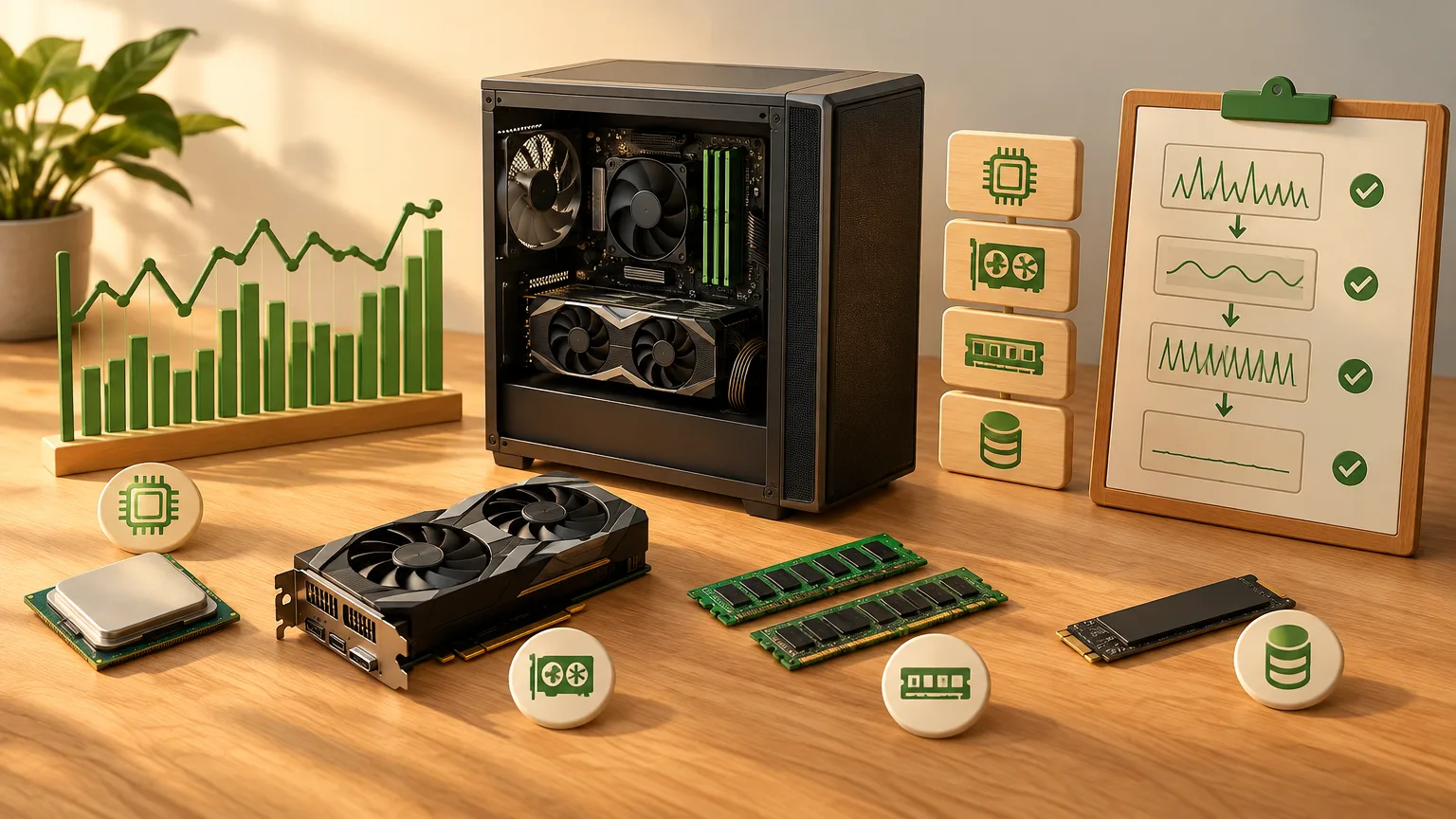
First, confirm that you’re seeing frame-time spikes
Average FPS describes output over time. Frame time describes the gap between individual frames. At a steady 60 FPS, each frame has about 16.7 milliseconds; at 120 FPS, about 8.3 milliseconds. Low but even FPS looks consistently sluggish. Stutter shows up as isolated spikes or clusters of long frames above the usual level.
Use an in-game frame-time graph if one is available. For a closer look, Intel’s PresentMon capture application records frame time alongside CPU Busy and GPU Busy, which measure how long the CPU and GPU spend working on a frame. Those figures are clues, not a verdict: frame time also reflects waiting and presentation behavior, so don’t assume every long frame was caused by whichever component has the larger number.
A 1% low can help compare two runs, but it hides when hitches occurred. Keep the graph or capture, and note the exact action that triggered a spike: turning the camera, entering a new area, starting combat, or doing nothing at all.
Make a test you can repeat
Choose a short route or scene where the problem happens reliably. Run it for roughly a minute, then repeat it under the same conditions. Keep resolution, graphics preset, frame cap, display mode, and upscaling settings unchanged for the baseline. If the game has frame generation, turn it off while diagnosing so generated display frames don’t obscure changes in the game’s own rendering pace.
Watch both the first pass and a second pass through the same area. Then restart the game and try again. This separates a persistent hitch from work a game performs only when it encounters something new.
Change one variable per test. If you lower resolution, close browser tabs, move the game to another drive, and update the driver together, an improvement won’t tell you which change mattered. Task Manager’s Performance view is a reasonable starting point for CPU, memory, disk, and GPU activity; its CPU graph can also be split by logical processor when overall usage conceals a busy thread.
Separate CPU stalls from GPU stalls
Start with the simplest controlled test: lower render resolution or use a more aggressive upscaling mode, leaving CPU-heavy settings such as crowd density and view distance alone. Run the same scene again.
If the long frames shrink substantially and GPU Busy falls with them, investigate the graphics workload. If average FPS rises but the spikes stay in the same places and remain nearly as long, the GPU probably wasn’t causing those particular hitches. Intel’s CPU–GPU bottleneck guidance makes the same distinction between reducing GPU work with resolution and reducing CPU work with settings such as draw distance. A game can be GPU-limited in one scene and CPU-limited in another.
Signs the CPU is holding up a frame
Look for a frame-time spike accompanied by increased CPU work while GPU work stays comparatively short or the GPU has little to do. Check individual logical processors, not just total CPU usage: one busy game thread can matter even when a many-core CPU’s overall percentage looks modest.
Next, reduce one CPU-sensitive setting—usually simulation detail, crowds, or view distance—and repeat the route. A smaller spike strengthens the CPU-work hypothesis. So does a hitch that follows a busy simulation event, such as a large group of characters appearing.
“CPU-side” doesn’t necessarily mean “buy a faster CPU.” The game might be compiling shaders, preparing assets, or waiting on another task. First check for background processes using CPU time, and compare behavior with overlays or recording software disabled. On a laptop, check whether the hitch appears only on battery power or after sustained heat. If it happens in just one game at the same scripted moment, the game itself may be the limiting factor.
Signs the GPU is holding up a frame
A GPU-heavy scene tends to show long GPU work and an improvement when you cut rendering load. Test resolution first, then demanding effects such as ray tracing, shadows, or reflections. If reducing one of these consistently shortens the same spikes, you’ve found a useful setting to trade for smoother play.
Keep video memory separate from raw GPU speed. Hitches that begin after you raise texture quality, especially when moving into new areas, can point toward video-memory pressure rather than expensive lighting or shading. Windows manages a video-memory budget that can change as other applications use the GPU; a game that exceeds its budget can suffer interruptions. Compare the same route with textures lowered, and watch dedicated GPU memory use. A high memory reading alone is not proof—what matters is whether the spikes change when memory demand changes.
Check RAM before blaming the drive
System RAM shortages often masquerade as storage problems because Windows may need disk access to retrieve data. In Task Manager’s Memory view, look at available memory while the game is running, not merely the installed capacity. Note whether the problem worsens after extended play or while a browser, stream, or other large application is open. Close those applications and repeat the same scene.
A useful result is specific: the frame-time spikes ease when you free RAM, and they return when you restore the competing workload. That is stronger evidence than seeing a high memory percentage. If the PC lacks enough physical memory for the workload you regularly run, adding RAM may help; changing a frame cap won’t create more memory.
Resource Monitor’s hard-fault activity can add context, but don’t read “hard fault” as “bad RAM” or automatically as page-file swapping. Microsoft notes that hard faults retrieve data from disk and can involve program files and memory-mapped files as well as the page file. Look for repeated faults during the hitch alongside low available RAM and a successful close-apps test.
If memory capacity looks comfortable but CPU-limited performance is uneven, check that the RAM is installed in the motherboard-recommended slots and running at its intended stable speed. Memory speed and dual-channel operation can affect frame times, but changing memory settings is a later test, not the first fix for a sudden hitch that started after a game update.
Test storage with location and timing, not just a disk percentage
Storage is a stronger suspect when a hitch coincides with loading: crossing an area boundary, fast-traveling, or bringing new assets onscreen. Watch activity on the drive that holds the game and note whether spikes coincide with reads. Then, if you have another suitable drive, move or reinstall the game there and repeat the route.
That comparison is more useful than a single “100% disk” reading. A busy drive may be responding to a memory shortage, a background download, or the game’s normal loading rather than causing the pause. Intel notes that an older hard drive can produce stutter as a game loads, so moving a game from an HDD to an SSD is a sensible test when loading-related hitches persist. It is not a general cure for spikes that happen while you stand still in an already loaded scene.
Also check what else is using the drive during play. Pause downloads and file transfers for one run. If the hitch disappears, you’ve found a conflict worth managing before spending money on faster storage.
When none of the four components fits
A first-time hitch can come from shader compilation rather than inadequate RAM or a slow SSD. Repeat the identical route without changing settings. If each new effect causes a hitch once but the second encounter is smooth, shader compilation is plausible. Microsoft explains that games may compile shaders during gameplay and cache the results for later use; a driver change can invalidate those caches. Let a game finish any startup compilation it offers, and avoid repeatedly clearing shader caches while testing.
If the frame-time graph stays steady while online players jump or inputs seem delayed, investigate the connection rather than local rendering. If a hitch appears only with an overlay, capture tool, or particular frame cap enabled, test that feature on and off. A regular, repeating pattern may also point to background software rather than a scene-dependent CPU or GPU limit.
The best next step is the one your tests support. Keep the setting change that reliably reduces a GPU spike; free or add RAM only when memory pressure is demonstrated; move the game only when loading behavior implicates its drive. If the same hitch survives those controlled changes and occurs at the same moment in one title, stop treating your PC as the presumed culprit. Record the route and frame-time result, then check that game’s support channels for a known issue.