Digital games are tied to an account, but that doesn’t mean only the buyer can play them. PlayStation and Xbox let other profiles use purchases on a designated console. Nintendo Switch and Switch 2 use virtual game cards that can be loaded on a console or lent to a family-group member. Each approach has a different catch: the console you choose matters, offline access isn’t the same everywhere, and handing someone your login creates risks that sharing settings don’t solve.
Start by deciding what you’re trying to do. If several people use one TV, sharing on that console is usually straightforward. If two people have separate consoles, the owner may need to give up offline access on their own machine—or, on Nintendo, temporarily give up access to the game itself.
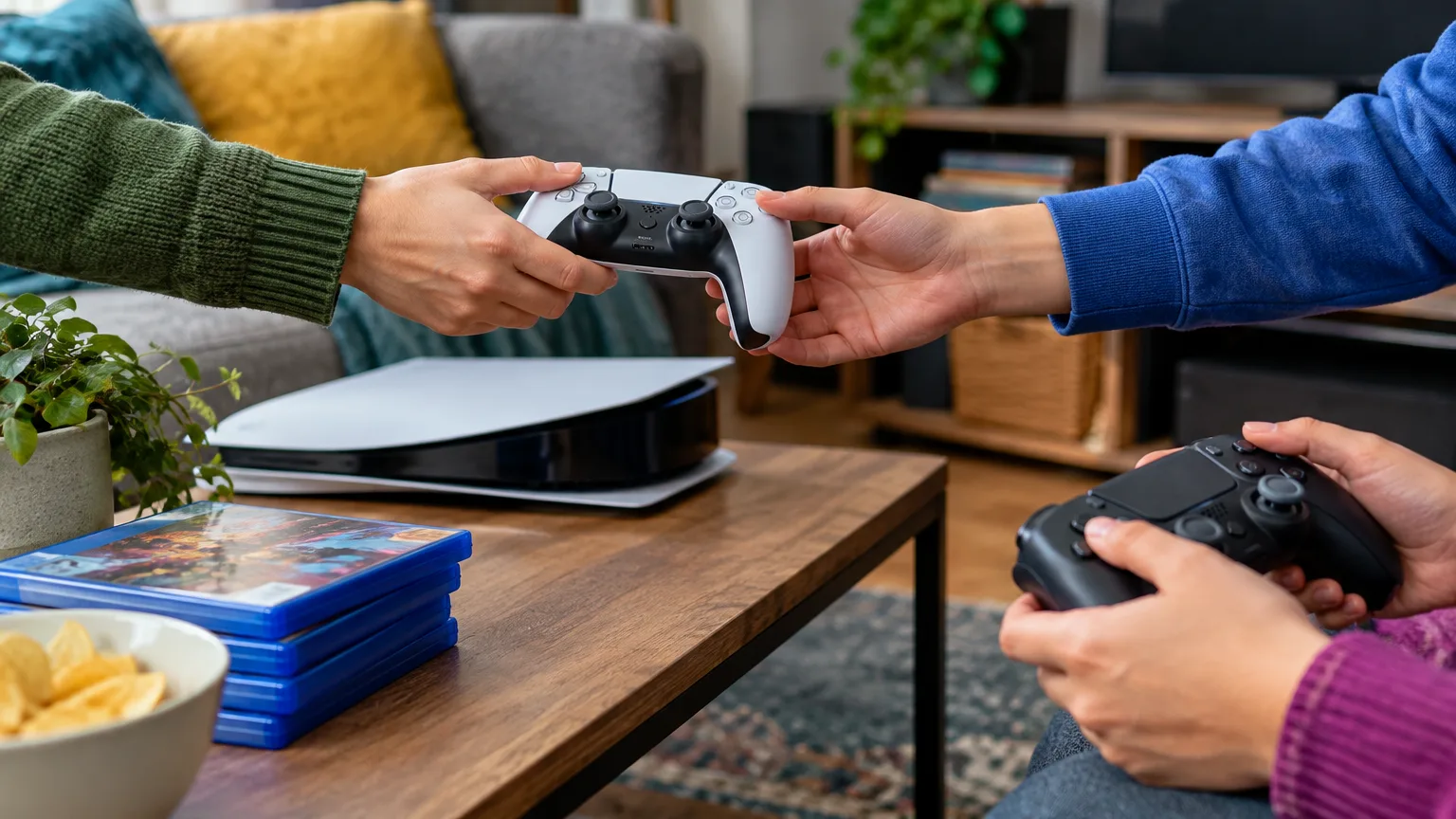
PlayStation: choose the PS5 or PS4 that everyone uses
On PS5, the setting is called Console Sharing and Offline Play. Sign in with the account that bought the games, then go to Settings > Users and Accounts > Other > Console Sharing and Offline Play and select Enable. Other users of that PS5 can then play the owner’s downloaded purchases, including while the console is offline. An account can have Console Sharing and Offline Play enabled on only one PS5 at a time.
On PS4, the equivalent is Settings > Account Management > Activate as Your Primary PlayStation 4 > Activate. An account can have one primary PS4 as well as one PS5 with Console Sharing and Offline Play enabled. You don’t have to deactivate one console type to use the other.
The practical setup for a household is to designate the console other people use, download the game through the purchasing account, and have each person play from their own profile. That keeps saves, trophies, and parental controls attached to the right player. If the owner regularly plays on another PS5, they should test that arrangement before relying on it during a trip or an internet outage: the designated PS5 is the one PlayStation explicitly enables for shared offline play.
Some PlayStation Plus benefits follow the same console setting. These include online multiplayer and access to eligible downloaded Plus games while the owner’s membership and the game’s availability allow it. Others—including cloud storage and claiming Plus games on someone else’s account—aren’t shared benefits. A child’s age restrictions still apply.
For a friend who only wants to try a game with you, changing your designated console is usually the wrong tool. PS5 Share Play lets you invite a visitor into a play session without giving them your account or a lasting library license. It requires a PlayStation Plus membership to start and has its own connection and play-mode requirements.
Xbox: the Home console holds the shared license
On Xbox Series X|S and Xbox One, sign in with the purchasing account on the console other people will use. Open Settings > General > Personalization > My home Xbox and select Make this my home Xbox. Other accounts on that machine can play the owner’s eligible digital games without keeping the owner signed in. The Home Xbox sharing model also covers many purchased add-ons and subscription-enabled console games; consumable items such as in-game currency remain tied to the buyer’s account.
That makes a Home Xbox a good fit for a family console. It can also support a two-console arrangement: one person plays on the designated Home Xbox under their own account while the purchaser signs in to play on a different Xbox. On that second, non-Home console, the purchaser needs an internet connection to obtain their account-based game license. Don’t make a console across town your Home Xbox if dependable offline play on the console in your living room matters more.
Changing the designation isn’t unlimited. Microsoft’s Xbox digital-goods rules allow up to five Home console changes in a rolling one-year period. A console can be Home to more than one account, but each purchasing account chooses its own Home console. If two friends intend to share purchases in both directions, each account’s setting must be made separately; setting yours does not automatically share theirs.
Game Pass access on a Home Xbox is useful, but it isn’t a second independent subscription. The game must remain available through the relevant subscription, and account-specific purchases or perks shouldn’t be assumed to carry over. As with PlayStation, have each player launch games under their own profile rather than borrowing the purchaser’s identity.
Nintendo: load a game, lend it, or play together
Nintendo’s system needs a closer look because “sharing a game” can mean three different things on Switch 2 and the original Switch.
First, you can load a purchased virtual game card onto a console. Anyone using that console can play the loaded game, including offline. A Nintendo Account can link up to two Switch or Switch 2 consoles that can load its virtual game cards, but a particular virtual game card is loaded on one console at a time. From the HOME Menu, open Virtual Game Cards, select the purchasing user and the game, then follow the prompts to load it. Linking a second console initially requires the systems to be near each other and connected to the internet; afterward, cards can be moved between the linked systems.
Second, you can lend an eligible virtual game card to someone in your Nintendo Account family group. On the lender’s console, open Virtual Game Cards, select the game, and choose Lend to Family Group Member. The borrower accepts it from Virtual Game Cards on their console. Both systems must be nearby and online for the loan to begin. Nintendo permits loans of up to 14 days, with automatic return; the owner cannot play that lent card until it comes back. Some games cannot be lent. A lender can have up to three different cards out at once, while a borrower can hold only one borrowed card at a time.
Neither loading nor lending transfers a save file with the game. If the same player wants to continue on another console, plan a separate save transfer or check whether that game supports Nintendo Switch Online cloud saves.
There is also an Online License setting for the purchaser. It lets that account launch its downloaded games on additional consoles without loading a virtual game card, but it requires an internet connection to check access. Other users cannot use that account’s online license as a substitute for a loaded card, and the purchasing account cannot use its digital content on multiple consoles simultaneously.
Finally, Switch 2 has a feature actually named GameShare. This is for playing together, not lending a game for later. A Switch 2 hosts a session of a compatible game; guests can join locally on Switch or Switch 2, or online through GameChat on Switch 2. Only supported games and connection methods work with GameShare. If a friend wants to join you for an evening, check for GameShare support before rearranging virtual game cards or family-group membership.
Offline access changes the best setup
“Downloaded” does not, by itself, mean “playable offline.” The console needs a way to verify the license, and some games require a connection for their own features regardless of how the purchase is shared.
For a console that often travels or has unreliable Wi-Fi, the strongest arrangements are a PS5 with Console Sharing and Offline Play enabled, a Home Xbox, or a Switch with the virtual game card already loaded. On Nintendo, make sure the card is loaded and the game has been launched before leaving home. On a non-Home Xbox or a Switch using only an online license, expect a connection check. Subscription games can also lose access when a membership ends or the title leaves its catalog.
If a game suddenly shows a lock or asks you to buy it, check the license arrangement before buying another copy. Confirm that the purchasing account owns the game, the right console is designated, and any required subscription is active. On PS5, restoring licenses can help with some padlock errors; it won’t restore a lapsed subscription or turn an undesignated PS5 into the sharing console.
Share the console, not your password
The safest arrangement is for each person to have their own account and for the purchaser to control any sign-in needed during setup. Don’t send a friend your password so they can “set up game sharing.” PlayStation’s account-security guidance specifically warns against sharing account details, and the same basic risk applies across platforms: a signed-in profile can expose purchases, payment options, messages, and account settings.
Before leaving your account on a shared console, protect it with a strong sign-in method and a console login passcode or PIN where available. Turn on purchase authentication on PlayStation or purchase protection on Xbox, and set spending limits for children. Add two-step verification to a Nintendo Account or the equivalent protection on your other accounts. If a friendship ends or a console leaves your household, remove your profile or change the sharing designation and review signed-in devices.
For most families, one designated PlayStation or Xbox is the simplest setup; for Nintendo, load the virtual card on the console people share. For friends on separate systems, use a short play session or Nintendo’s time-limited lending when it fits. Move a Home or sharing-console designation only after deciding whose offline access you’re willing to trade.