A gaming PC can have an excellent processor and still disappoint if its graphics card can’t keep up with your monitor. The reverse is just as easy to buy: a costly GPU paired with a CPU that struggles to feed it the frames you want in competitive games. Neither problem is solved by buying the most expensive version of everything.
Start with three decisions: the resolution you’ll play at, the games you spend the most time in, and the frame rate you’d be happy with. Then set a budget for the whole setup—not just the tower. If you still need a monitor, Windows license, keyboard, or headset, those costs come out of the same pot.
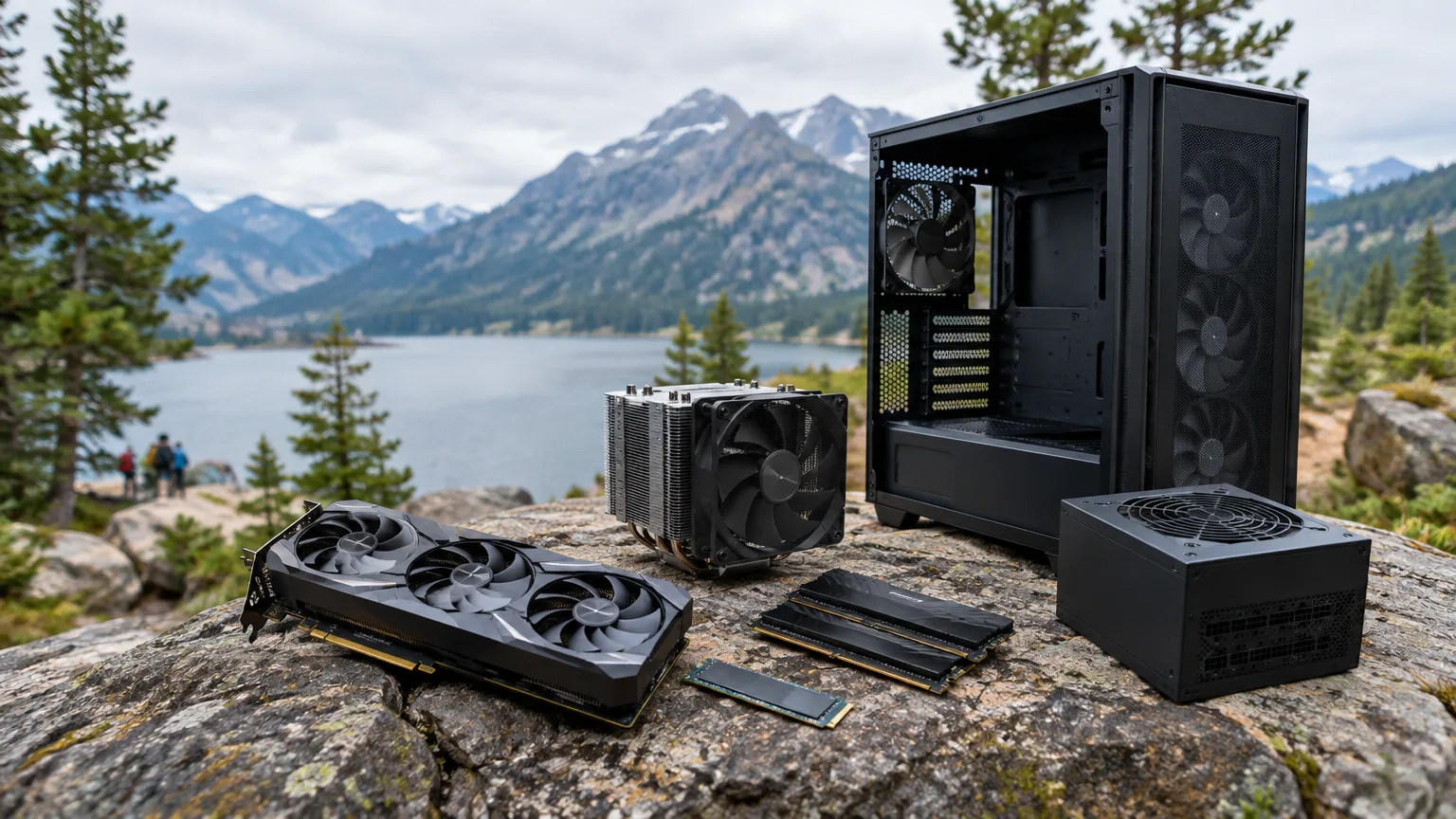
Let your monitor and games set the target
Resolution changes how much work the GPU must do. Game type changes how much CPU speed matters. These are useful starting points, not fixed hardware requirements:
| Your target | Put the emphasis on | What to watch for |
|---|---|---|
| 1080p, roughly 60–100 frames per second | A capable entry-level GPU and sensible midrange CPU | Don’t pay for a flagship processor while settling for weak graphics. |
| 1080p, 144 frames per second or higher in competitive games | CPU performance and stable frame times, alongside an adequate GPU | Check benchmarks for the games you play, especially their 1% lows. |
| 1440p, roughly 60–120 frames per second | A stronger GPU with a balanced midrange CPU | Ray tracing and ultra settings can raise GPU demands sharply. |
| 4K or demanding ray tracing | GPU performance first | Expect to adjust settings or use upscaling in demanding games. |
A 1440p monitor isn’t a promise that every game will run at 144 frames per second. A strategy game crowded with units, a competitive shooter on low settings, and a visually dense single-player game can stress the same PC in very different ways. Before picking parts, find recent tests of two or three games you actually intend to play at your target resolution. Look at average frame rates and 1% lows, which help show how smooth the slower moments feel.
Choose the GPU first—unless high-frame-rate gaming is your priority
For most buyers, the graphics card should be the first major component chosen. It has the largest say in how well a PC handles higher resolutions, demanding visual settings, and ray tracing. Once you’ve picked a GPU that meets your target, choose a CPU that won’t hold it back.
For a value-focused 1080p PC, compare cards such as the GeForce RTX 5060 and Radeon RX 9060 XT rather than assuming a bigger model number will be worth the extra money. At 1440p, the RX 9060 XT 16 GB is a lower-cost option if you’re willing to tune settings; the RX 9070 offers more room for demanding games. If you’re shopping for stronger 1440p performance or a move into 4K, compare the RX 9070 XT and GeForce RTX 5070 Ti in the games you care about. PC Gamer’s tested GPU recommendations place these cards in different value and performance tiers, but local prices can change which one makes sense.
Don’t buy by VRAM capacity alone. Video memory holds assets such as textures, but a 16 GB card isn’t automatically faster than every 8 GB card. Conversely, an 8 GB model that performs well today may give you less freedom to raise textures in demanding games later. For a budget 1080p PC, 8 GB can be a reasonable compromise; for a 1440p PC you expect to keep for years, compare higher-VRAM options when the price difference is manageable.
Treat upscaling and frame generation as useful extras, not substitutes for adequate basic performance. Upscaling renders at a lower resolution and reconstructs the image; frame generation adds displayed frames between those rendered by the game. Nvidia distinguishes those two features in its DLSS documentation. When reading a benchmark or a PC listing, check whether its headline frame rate uses either feature, and whether that matches how you want to play. Fast shooters, in particular, deserve a look at responsiveness as well as the displayed number.
Buy enough CPU for your frame-rate goal
The CPU handles game logic and prepares work for the GPU. At modest frame rates with demanding graphics settings, a good midrange processor often leaves more of the budget for the part that needs it: the GPU. At very high frame rates—especially in competitive games at 1080p—CPU differences become easier to see.
That makes a Ryzen 5 7600X or 9600X-class AM5 system a more sensible starting point for many buyers than paying for a top-end gaming chip. An Intel Core Ultra 5 250K Plus is another midrange option worth comparing as a complete CPU, motherboard, memory, and cooler package. At the other end, an X3D chip such as the Ryzen 7 9800X3D is worth considering when high frame rates are a clear priority and the rest of the system is already strong. CPU gaming tests commonly emphasize 1080p because that makes processor differences easier to measure; those gaps won’t necessarily appear to the same degree in your GPU-limited 4K game.
There’s no universal “best CPU and GPU combination.” A balanced 1440p PC might pair a midrange Ryzen 5 with a stronger GPU. A dedicated esports PC might justify more CPU spending and less GPU spending. If you also edit video or run heavily threaded work, that changes the CPU decision again. Match the pair to your workload rather than matching their positions in a product lineup.
Spend on memory and storage where you’ll notice it
For a tight-budget gaming PC, 16 GB of system RAM remains a workable choice. For a machine meant to handle demanding games alongside browser tabs, voice chat, or other background apps, 32 GB offers more breathing room. Testing across recent games found that 16 GB was often sufficient, with notable exceptions; it’s neither obsolete nor the ideal choice for every player.
Check the memory layout, not just the total. A two-stick kit is preferable to a single stick for a new build because it can use dual-channel memory. If you’re buying a prebuilt with 16 GB and plan to upgrade, find out how many slots are occupied and whether compatible memory is readily available. DDR4 and DDR5 require different motherboard support; you can’t turn a DDR4 board into a DDR5 one by swapping sticks.
Start with a 1 TB NVMe SSD if the budget allows, and consider 2 TB if you keep several large games installed. Storage capacity will matter sooner than an impressive peak-speed figure on the box. Gaming SSD testing finds that a good PCIe 4.0 drive remains a strong value against faster PCIe 5.0 models; the more expensive interface isn’t a direct route to higher frame rates.
Set the budget for the complete PC
Work backward from the maximum you can spend. Put aside money for a decent power supply, motherboard, case, cooling, and storage before deciding what’s left for the GPU. Those parts may not feature in benchmark headlines, but a bargain build stops being a bargain if it’s loud, runs hot, or needs a new power supply for its first graphics upgrade.
As a planning exercise, suppose you have $1,500 for parts, excluding the monitor and peripherals. Reserving about $550 for the GPU and $225 for the CPU leaves $725 for everything else. Those aren’t target prices for particular products; they’re a check on the balance of the build. If memory or storage costs push the total over budget, compare a less expensive case or motherboard before dropping the GPU tier that made the PC suitable for your games.
Also compare that parts list with complete systems. Building gives you control over component quality and makes later repairs easier to understand, but it isn’t guaranteed to cost less. With memory and SSD prices affecting build costs in 2026, a prebuilt sale can be competitive. Compare like with like: the exact GPU model and VRAM, RAM amount and layout, SSD capacity, Windows inclusion, warranty, and the components a listing may leave unnamed.
Pay for upgrade headroom you can actually use
“Future-proof” is an easy way to overspend. Useful upgrade headroom is specific. A motherboard with a free M.2 slot makes adding storage simple. A standard-size case with space for a longer GPU, paired with a suitable power supply and the right connectors, makes a later graphics upgrade more practical. Spare RAM slots help only if the memory configuration and platform support the upgrade you have in mind.
If you expect to replace the CPU later, check the socket and the motherboard maker’s supported-CPU list, including required BIOS versions. AMD has committed to AM5 support through 2029, which makes it attractive to buyers who value a possible processor upgrade. That commitment doesn’t guarantee every future CPU will work in every AM5 board without a firmware update—or that an expensive motherboard is necessary today.
Be especially careful with prebuilt desktops described simply as “upgradeable.” Ask for the motherboard model, power-supply model and wattage, case dimensions, and GPU clearance. Don’t assume a brand always uses proprietary parts or always uses standard ones: configurations differ. Alienware’s move to standard components in its Area-51 desktop is a reminder to check the particular machine, not its reputation.
The best choice is the least expensive complete PC that meets your frame-rate goal in your games without obvious compromises elsewhere. Write down the target first, compare real game benchmarks second, and judge the CPU, GPU, memory, and upgrade path as one package. That discipline will do more for your purchase than any premium part bought on its own.